How to create an Activity
Objective:
The objective of this training manual is to provide step-by-step instructions on how to create a new activity record in Salesforce. Activity records are used to track interactions, tasks, events, and other activities related to leads, contacts, accounts, and opportunities within Salesforce.
An activity refers to the actions/tasks that are carried out in the course of the program. In an activity inputs are transferred into ‘outputs’ (Direct Effects in SPMM), so to produce higher level results.
Audience:
This manual is intended for Salesforce users who have permissions to create and manage Activity records.
Pre-requisites:
Before proceeding with creating a new Program record, ensure you have:
- Access to Salesforce with appropriate permissions to create records.
- Necessary information about the activity, including its type, subject, and related record (e.g., lead, contact, account).
Steps to Create a New Program Record:
Step 1
Log in to Salesforce: https://olive.my.salesforce.com/
- Open your web browser and navigate to the Salesforce login page.
- Enter your username and password, then click “Log In.”
Step 2
Navigate to the Programs Object:
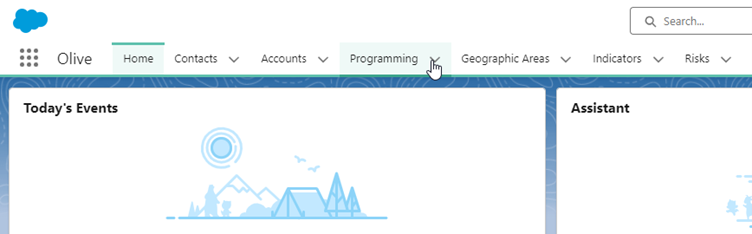
1. On your Olive Dashboard, click on the “Programming” tab:
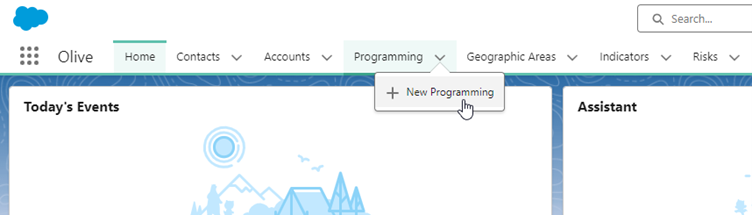
2. Click on “New Programming”
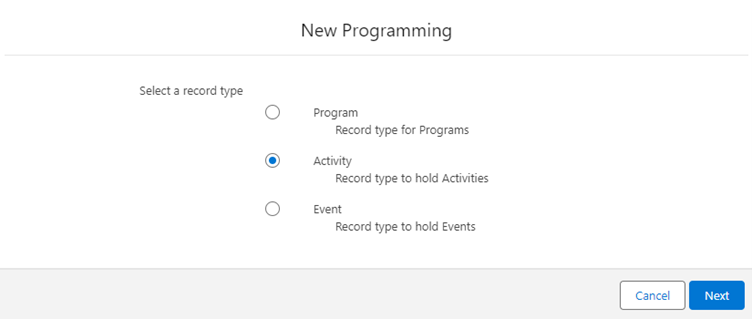
3. Select the “Activity” record type and click on “Next”
4. Complete the “New Programming: Activity” information and click on “Save”
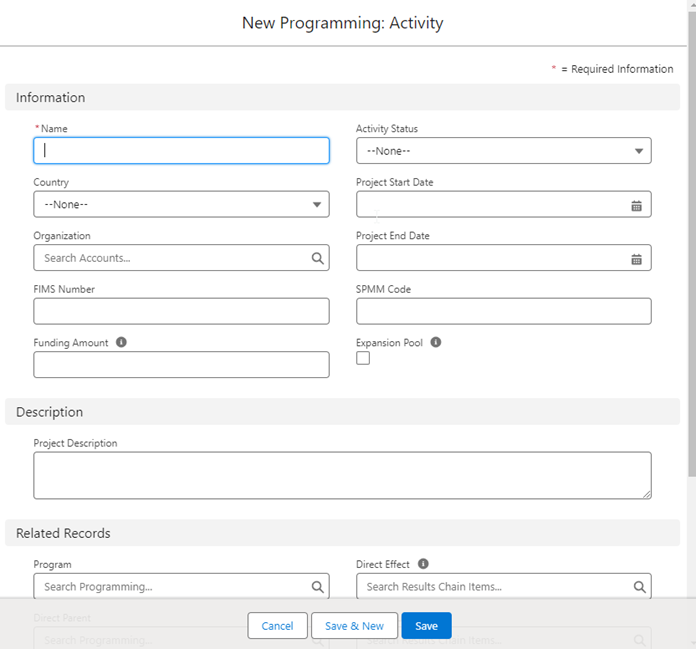
| Field Name | Details |
| Name | Name of the activity |
| Country | Which country the new program is for |
| Organization | Which organization the activity is for |
| FIMS Number | The Financial Information Management System number |
| Funding Amount | Total amount of funding available for the project |
| Activity Status |
The current status of the program: – Planned – In Progress – Completed – Cancelled – Closed |
| Project Start Date | Start date of the project |
| Project End Date | End date of the project |
| SPMM Code | SPMM code to be used |
| Expansion Pool | Is this activity part of an expansion process? |
| Project Description | Description of the program |
| RELATED RECORDS | |
| Program | Program that the activity is associated to |
| Direct Parent | Parent program that the activity is associated to |
| Direct Effect | Which direct effect is related to this activity? |
| Project Outcome | What Project Outcome is related to this activity? |
| Strategic Impact Priority | What Strategic Impact Priority is related to this activity? |
Step 3:
Verify the Activity Record:
- Once saved, review the activity record to ensure all information is accurate.
- Make any necessary edits by clicking on the “Edit” button.
Step 4:
View and Manage Activities:
- Navigate back to the Activities tab to view and manage all activities.
- Use filters and search functionality to find specific activities if needed.
Step 5:
Train Users (Optional):
If other users will be creating activity records, consider providing them with training based on this manual to ensure consistency and accuracy in data entry.
Conclusion:
Creating a new Program record in Salesforce is a straightforward process that involves entering relevant information into the program record form. By following the steps outlined in this manual, users can efficiently manage various initiatives or projects within their organization, facilitating better tracking, reporting, and decision-making. Remember to maintain data consistency and compliance throughout the process to ensure the integrity of your program data.